You've landed, switched on your eSIM, and… nothing. Don't worry: nearly every travel eSIM problem comes down to one of a handful of settings. Work through these in order, and give your phone a minute between steps to find a network.
Important: don't delete the eSIM or rescan the QR code while troubleshooting. Most eSIM profiles can only be installed once, so a deleted eSIM usually can't be reinstalled from the same code.
1. Is the eSIM line switched on?
If you followed our advice and turned the eSIM off before your flight, switch it back on:
- iPhone: Settings → Mobile → tap your travel eSIM → turn on Turn On This Line.
- Android: Settings → SIM manager (or Network & internet → SIMs) → turn the eSIM on.
2. Is it selected for mobile data?
Your phone only uses one line for data at a time.
- iPhone: Settings → Mobile → Mobile Data → choose your travel eSIM.
- Android: In SIM manager, set the eSIM as the Mobile data SIM.
3. Is data roaming on for the eSIM?
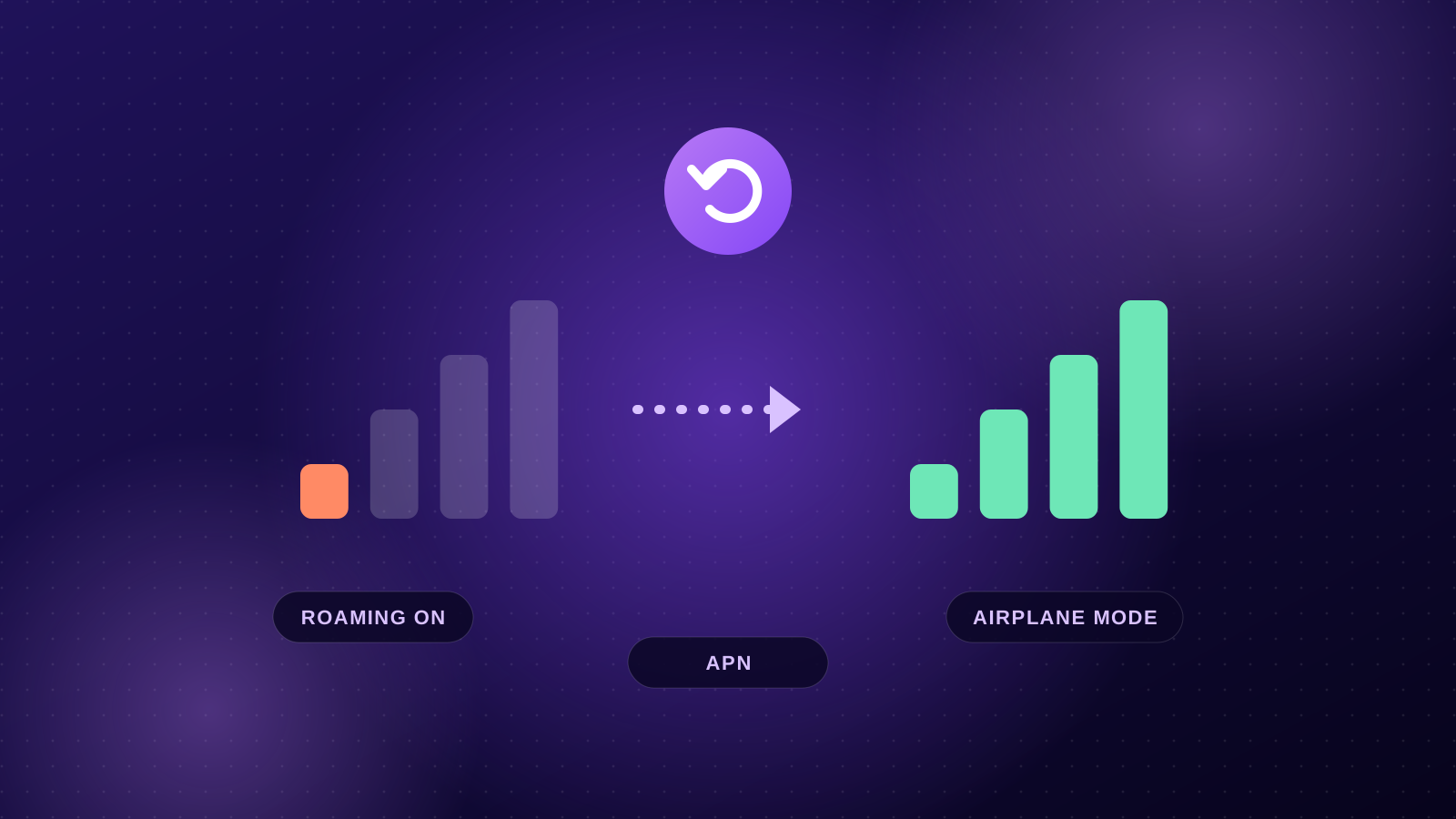
This is the most common fix. Travel eSIMs connect to local networks as roaming partners, so Data Roaming must be on for the eSIM line. It doesn't cost extra.
- iPhone: Settings → Mobile → tap the eSIM → Data Roaming on.
- Android: open the eSIM's settings → Roaming on.
Keep data roaming off on your home SIM to avoid charges from your carrier.
4. Are you in a country your plan covers?
Country plans work only in that country. Regional and Global plans list every country they cover on the plan page. If you're on a cruise ship or flight, you'll be on the ship's or airline's own network, which travel eSIMs don't cover.
5. Toggle Airplane mode, or restart
Turn Airplane mode on for 10 seconds, then off. If that doesn't help, restart the phone. This forces it to search for networks again, which often fixes things straight after landing.
6. Choose a network manually
Sometimes your phone keeps trying a network it can't use.
- iPhone: Settings → Mobile → tap the eSIM → Network Selection → turn off Automatic and pick a network from the list.
- Android: eSIM settings → Network operators → turn off Select automatically and choose a network.
Try each listed network in turn. It can take 30–60 seconds for the list to appear.
7. Set the APN
If you have signal bars but no data, your phone may need the APN (the name of the network's data gateway). It's shown in your eSIM email.
- iPhone: Settings → Mobile → tap the eSIM → Mobile Data Network → enter the APN under Mobile Data.
- Android: eSIM settings → Access Point Names → add a new APN with the name and APN from your email, save, and select it.
8. Data is working but slow
- You may have used your plan's high-speed allowance and dropped to the reduced speed. Check your usage in your phone's mobile data settings.
- Try selecting a different network manually (step 6).
- Coverage varies. Moving outdoors or away from basements and train tunnels often helps.
- Turn off any VPN for a moment to see whether it's slowing things down.
9. The QR code won't scan
- Scan from a different screen or a printout, with the brightness turned up.
- On recent iOS versions, long-press the QR image in Mail to add the eSIM directly.
- Or enter the details manually: the SM-DP+ address and activation code are on your eSIM in your account.
Still stuck?
Email [email protected] with your order number, your phone model and a screenshot of the problem. Please contact us before buying another eSIM; we'll help sort it out.